|





 |
|
|
|
|
|
|
|
|
|
|
 |
||||||||||
|
How to install Kawa |
||||||||||
|
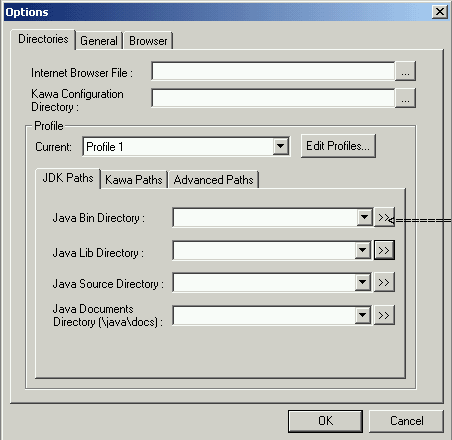
When you first open Kawa you need to set the java paths so that Kawa knows where java is installed, Kawa will force you to enter the paths so follow the steps below. If you have already set the paths and would like to modify them, simply click on the customise menu and choose options. Either way See Fig1 |
||||||||||
|
To set the java bin directory click on the button with the arrow pointing towards it (fig 1) |
||||||||||
|
Fig 1 |
||||||||||
 |
||||||||||
|
|
|
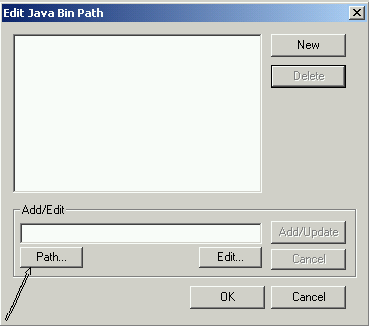
Once you have clicked on the java bin directory button, a dialig box appears where you enter the path where java has been installed on your machine. This is done by clicking on the path button see fig 2 |
|
|
|
|
|
|
|
|
|
|
|
|
|
|
|
|
Fig 2 |
||||||||||||||
 |
||||||||||||||
|
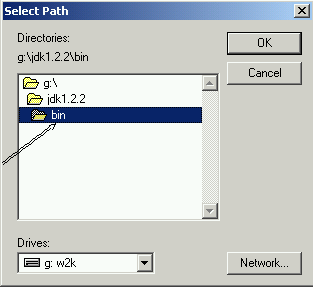
Then find the directory where jdk is installed, once you have found the directory click to go within the bin directory , then click ok |
||||||||||||||
|
Fig 3 |
||||||||||||||
 |
||||||||||||||
|
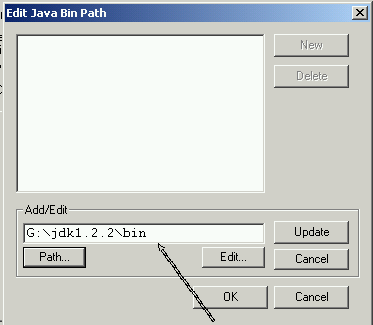
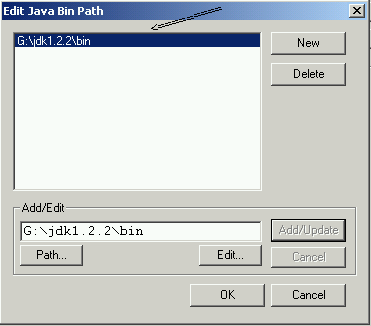
The jdk directory has now been set, now click on the update button see Fig 4 |
||||||||||||||
|
Fig 4 |
||||||||||||||
 |
||||||||||||||
|
The JDK directory is then updated in the dialog box see Fig 5. Now click ok, Kawa will take up to 30 seconds to set these paths so expect a delay before kawa responds to any actions. |
||||||||||||||
|
Fig 5 |
||||||||||||||
 |
||||||||||||||
|
|
|
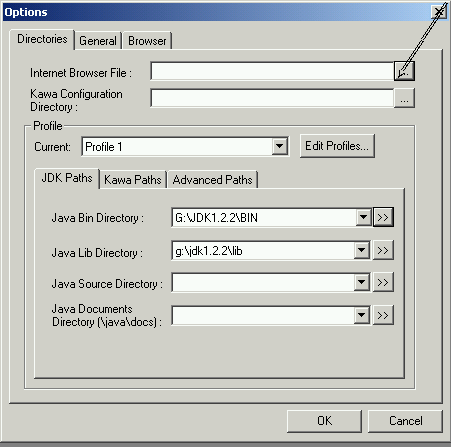
This directory should be filled automatically by Kawa when you select the bin directory. Please check to make sure it points to the correct location. The next step is to set the internet browser file, click on the internet browser button |
|
|
|
|
|
|
|
|
|
|
|
Fig 6 |
|||||||||
 |
|||||||||
|
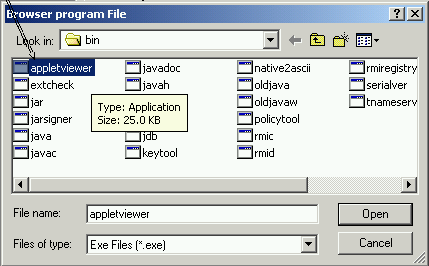
a new dialog box will appear see fig 7 where you select the appletviewer program. Then click on the open button |
|||||||||
|
Fig 7 |
|||||||||
 |
|||||||||
|
|
|
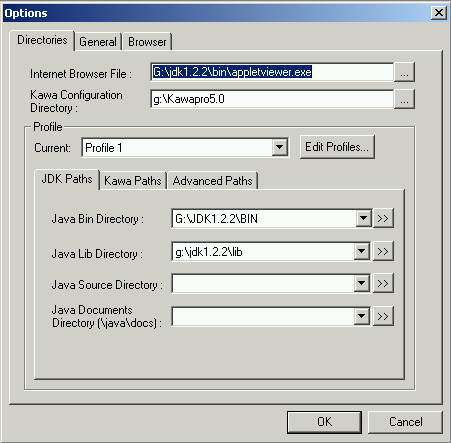
The Kawa set up is now complete, click ok to return to the Kawa enviroment |
|
|
|
Fig 8 |
|
|
 |
|
|
| [Home] [Labs] [Seminars] [Guides] [Xtras] |
|
||||
|


